Logitech Office on Noon UAE: checkout message — correct shopping market
Noon UAE coupon market Office Logitech the live coupon message at checkout: Understanding why correct market context matters is essential when hunting for savings
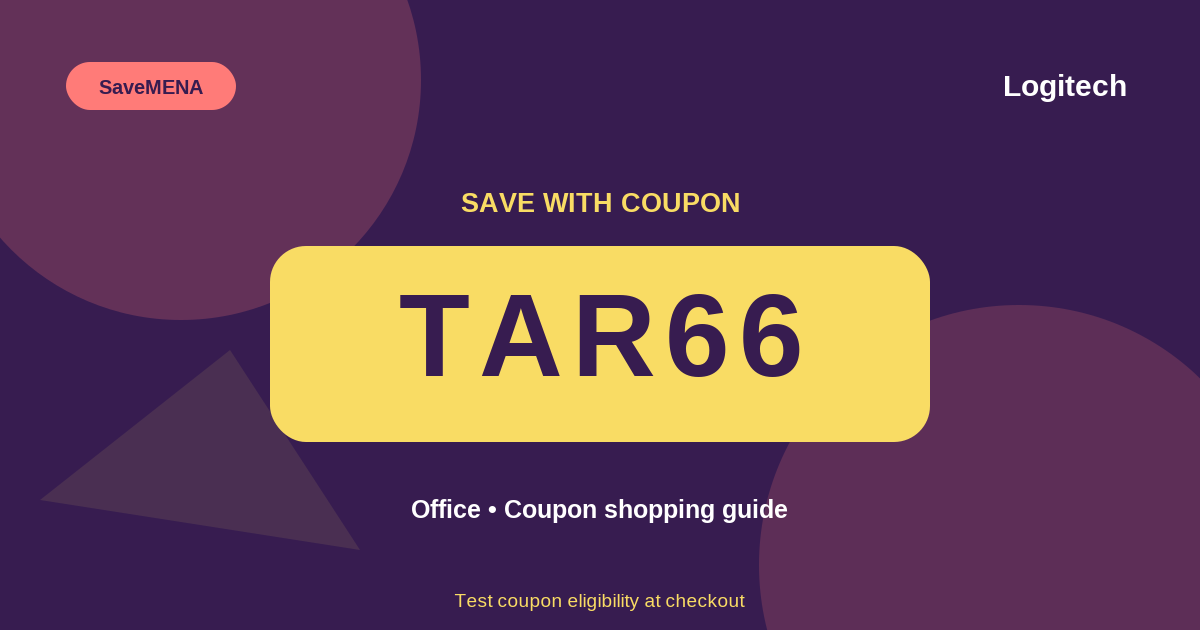
Codes available to try while comparing
These codes are not guaranteed for the article topic or listed brands; test them at checkout and use the live result.
1. Selecting a Logitech Office Item You Need
Start by identifying your specific office requirement—whether it’s a keyboard, mouse, or full‑spectrum workspace solution. Browse the dedicated office category on Noon and filter for Logitech offerings. Pay close attention to product titles for “Logitech” to avoid similar-sounding brands that may not qualify for the coupon. By aligning your choice with the brand, your next steps become more the coupon code and reduce confusion at checkout.
When you add a Logitech item to your cart, note the product’s stock status and seller details. This visibility helps confirm that the good is currently available for shipment to the UAE. Being aware of these factors early safeguards against later disappointment when you’re ready to place your final order.
2. Verifying Coupon Eligibility Before Adding to Cart
Check the product description and any coupons or promotions listed on the item page. Even if the TAR66 code is applicable, note that it is only available to try; no guarantees are made in terms of reduction or expiry. Look for any use‑conditions that might hint at category or brand eligibility. If a sticker says “Office” or “Logitech”, that is a good indicator you’re on the right track.
At this stage, ensure you have no user‑specific restrictions such as a minimum purchase amount or a restriction to paid members. If the listing is clear and nothing contradicts the coupon’s scope, you can confidently move the item to your cart and continue the verification process.
3. Adding the Item to Cart With Confidence
Once the item meets your preliminary eligibility, add it to the cart by selecting your desired quantity. If the product offers multiple configurations—for example, color or connectivity—choose the option that best fits your workspace requirements. The cart now holds your potential purchase and provides a checkpoint for the coupon’s applicability.
Before proceeding, glance at the cart summary. Confirm the quantity, variant, and that no unexpected shipping fees are listed. If the sum appears correct, proceed to the next step where the live coupon system will validate the code.
4. Reviewing the Cart Summary Before Checkout
In the cart page, double‑check that the product’s seller information matches what you expect for a Logitech official listing. NV matching Courier or Fulfilment certification often signals authenticity. If there is any doubt, use the “More details” link to review seller ratings and any question answered by the vendor itself.
At this point, you can also cross‑verify the coupon code’s availability by scrolling to the coupon section. Here you can paste TAR66 to see if the system flags anything about applicable ranges or immediate cut‑offs. Even if nothing appears to succeed, keep the code on hand for the live message check later.
5. Watching for the Live Coupon Message at Checkout
When you proceed to the checkout screen, the platform will prompt you for a coupon code among other details. Enter TAR66 in the designated field. The live coupon system is designed to process the entry instantly, delivering a message directly underneath or beside the field in real time. Rather than waiting for a confirmation later, you’ll know immediately if the coupon is viable for your cart.
The live message might read “Coupon applied” or “Coupon not eligible.” If you see a positive indication, note any accompanying details such as “applies to selected items” or “applies to entire cart.” If the coupon fails, the platform typically displays a brief explanation. Use this instant feedback to guide the next decision.
6. Interpreting the Live Coupon Feedback
When the live message confirms the coupon’s application, verify that the adjusted total reflects the coupon’s impact, even though no numeric discount is guaranteed. Retailers rarely reveal the exact savings until the payment page is reached, so keep an eye on the subtotal line. A green checkmark beside the coupon code is usually standard indicators of success.
If the message instead shows a failure, read any explanatory note. Check for constraints such as “product outside eligible category” or “only available in specific regions.” A clear message can prompt you to revise your cart or try an alternative product that meets the criteria. This step ensures you do not proceed under false assumptions.
7. Finalizing Payment with Coupon Confirmation
Once the live coupon message is positive, begin the payment process. Review the final total, taking note of any shipping fees that may apply. If the coupon message shows “Coupon applied” but the final total remains unchanged, the coupon might only apply to certain future purchases or require a minimum cart size not presently satisfied. Verify that the checkout displays the coupon under “Applied Coupons” or a similar section.
Submit your payment information and confirm the order. Your receipt or confirmation email is the definitive proof of the live coupon’s execution, as it details the payment amount, applied coupons, and discounts (if any). Keep this documentation for any potential disputes or refunds.
8. Post‑Purchase Checklist and Customer Support
After your order is confirmed, protect your investment by saving the receipt details including the applied coupon code. Should any discrepancy arise—such as a different total or missing discount—contact Noon’s customer support or consult the chat feature. Provide them with the order reference and clearly state the coupon code used.
Remember that each platform can have slightly different support pathways. In the UAE, Noon’s UAE portal typically hosts a chat window, an email address, and a phone number dedicated to order inquiries. Storing the conversation helps resolve any post‑purchase concerns quickly.
Related SaveMENA pages
Related articles
Official sources to check
Frequently asked questions
What steps should I verify in the live coupon message at checkout?
Check that the message confirms coupon application, note any special qualifiers, and ensure the final total reflects the coupon’s effect, even if the exact discount is not disclosed. If the message fails, review the explanatory note for clues on eligibility constraints.
Can I apply TAR66 to any Logitech office product on Noon?
The coupon is available to try, but it may only apply to specific Logitech office items or categories. Verify eligibility on the product page and during live checkout before assuming it will apply universally.
Will the coupon reduce shipping fees?
No definitive guarantee is offered about shipping reductions. Typically, coupons the coupon code product prices; any shipping changes will be displayed during the final payment step if applicable.
How can I be sure the coupon code is valid for my order?
Use the live coupon message at checkout to get instant confirmation. If the system flags the code as invalid or ineligible, review the product listings, eligibility clues, or try a different Logitech office item.