Anker Computer Accessories on Noon UAE: account eligibility — testing coupons one at a
try Noon UAE coupon codes Computer Accessories Anker account context: Buying computer accessories on Noon in the UAE often feels like navigating a maze of offers.
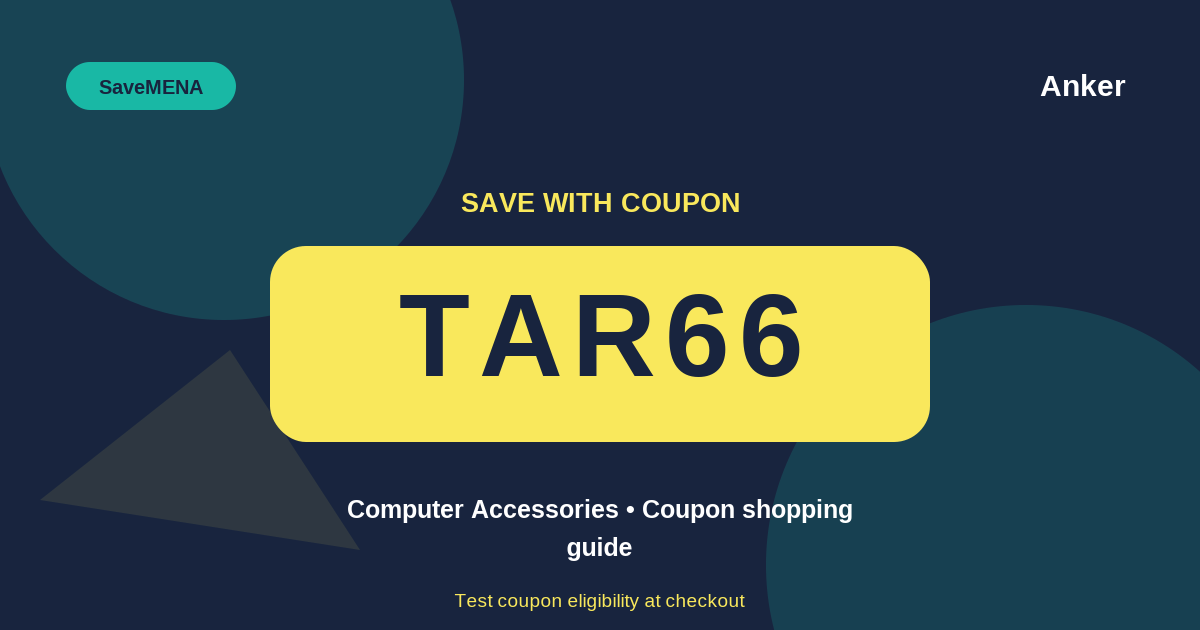
Codes available to try while comparing
These codes are not guaranteed for the article topic or listed brands; test them at checkout and use the live result.
1 – Open Your Cart with The Correct Variant Refrain from adding a different product line or bulk quantity before confirming the coupon is active on the selected item.
When you first add an Anker accessory—whether it’s a charger, cable or docking station—to your cart, double‑check the quantity and product variant header. For computer accessories, the difference between the 60W and 100W Anker charger can change the total sum at checkout. Ensuring you have the exact version in your cart avoids late‑stage surprises when the coupon is applied, especially since coupon eligibility may flag at specific SKUs.
After choosing the correct variant, click the cart icon on Noon’s interface to preview the subtotals. Verify that the subtotal reflects the wholesale price before you test any code. A mis‑listed price might cause the code to refuse, but you’ll know early enough to act accordingly.
2 – Verify Your Noon Account Sign‑In Status to Benefit from Coupon Eligibility
Only fully signed‑in Noon accounts receive coupon validation. Even if the TAR66 code appears in your shopping bag, an incorrect login or a locked account can cause the discount to drop. Ensure you are logged into the correct Emirates‑based login that matches your payment method. Log out and log back in if you notice any inconsistencies.
Account sign‑in status also defines which loyalty benefits or regional promotions stack with your coupon. If your Noon account is linked to a corporate email or a shared profile, it might alter eligibility. Verify your personal profile information and update it if needed before proceeding.
3 – Add the Coupon Only After Confirming Cart Totals and Fees
On Noon, the “Apply coupon” field appears at the bottom of the cart summary. Scroll down past shipping, handling and any optional gift wrap charges. Enter TAR66 and watch the dynamic update. The cart should display a recalculated subtotal that reflects the new total. If the code appears greyed out or prompts an error, it typically means the account isn’t in a suitable state.
Because computer accessories can trigger stock or warranty policies, your final subtotal may shift after coupon application. Diligently compare the value before and after entering the code. If there’s no change, note that and proceed to the next decision step.
4 – Check the Seller’s Return Policy and Shipping Fees
The ability of TAR66 to discount can depend on seller‑specific terms. Many Noon listings include a separate “Seller” field. Click that button to read their unique return policy and shipping tier. E‑commerce sites often apply different coupon constraints when the seller sets an expedited delivery option. Check that the shipping fee is at or below a threshold that your account context accommodates.
Return policies may also restrict returns on open boxes for accessories. If the seller’s policy lists “no returns on opened electronics,” the coupon might fail at checkout. Verify all details on the seller’s page to ensure no unintended friction when validating the code.
5 – Confirm the Final Total Matches the Expected Discounted Amount
Before you hit “ Proceed to payment ”, examine the final price line that appears in the checkout window. Noon recalculates the total and most notably changes the tax brackets if the coupon takes effect. Double‑check that the final number includes any applicable VAT and that the discount line is visible. The absence of a discount line means the code didn’t apply.
Make a mental note of whether the final total is lower than your pre‑coupon cart or falls within the expected threshold. If it’s unchanged, don’t assume the code is dead; proceed to the next step. A quick nuance in the voucher can override eligibility purely through account context.
6 – Choose a Compatible Payment Method and Review the Decline Risk
Noon’s payment gateway often varies payment acceptance by account standing. Some accounts may restrict American credit cards or reward points for coupons. Verify that your chosen method—be it a credit card, debit card or Noon wallet—aligns with the site’s security checks. A payment method mismatch can cancel coupon benefits mid‑checkout.
When you confirm the order, the confirmation screen lists the payment method and the final charge. This is the last moment to stop the process if the card’s authorization fails. If there’s a decline, double‑check whether TAR66 is still listed as part of the order. It can be removed automatically by a declined payment.
7 – Review the Order Confirmation Email for Coupon Confirmation
Even if Noon’s checkout displays the total as expected, a confirming email can provide definitive proof that the coupon was applied. Search your inbox for the subject line that contains “Your Noon Order Confirmation” and inspect the detailed break‑down. The applied discount should appear next to the product name.
If the email omits the discount line or shows a different total than the checkout screen, it distinguishes a late‑applying error. Use this email as the official record to request refunds or adjustments if the coupon wasn’t honored.
8 – Contact Noon UAE Support if Discrepancies Persist
Should all the preceding steps indicate a coupon failure or a mismatch in the final total, reach out to Noon’s support team. The live chat or phone options prioritize UAE customers. Be ready to quote the order ID, the model of the Anker accessory, the coupon code TAR66 and your account email.
Support can clarify whether the coupon was invalidated by seller policies or by a recent change on the platform. They can manually re‑apply the discount or provide a refund if the item was mis‑charged due to account context or technical oversight.
Related SaveMENA pages
Related articles
Official sources to check
Frequently asked questions
Does the TAR66 code apply automatically once I add an Anker item to my cart?
The code must be manually entered in the “Apply coupon” field; it does not activate automatically.
Will the coupon work if I’m not signed into my Noon account?
Noon requires a signed‑in account to validate coupon eligibility. Ensure you’re logged in before applying the code.
Can I use TAR66 on multiple accessories at once?
Only one coupon per order is typically allowed; verify this on Noon’s terms or during checkout.
Will a changed shipping option affect the discount?
Some sellers adjust coupon applicability based on shipping tier. Check the seller’s policy before finalizing the shipping choice.