HP Laptops on Noon UAE: item availability — testing coupons one at a time
try Noon UAE coupon codes Laptops HP exact item or variant availability at purchase time: SaveMENA guides UAE shoppers who want to *try Noon UAE coupon codes* on HP
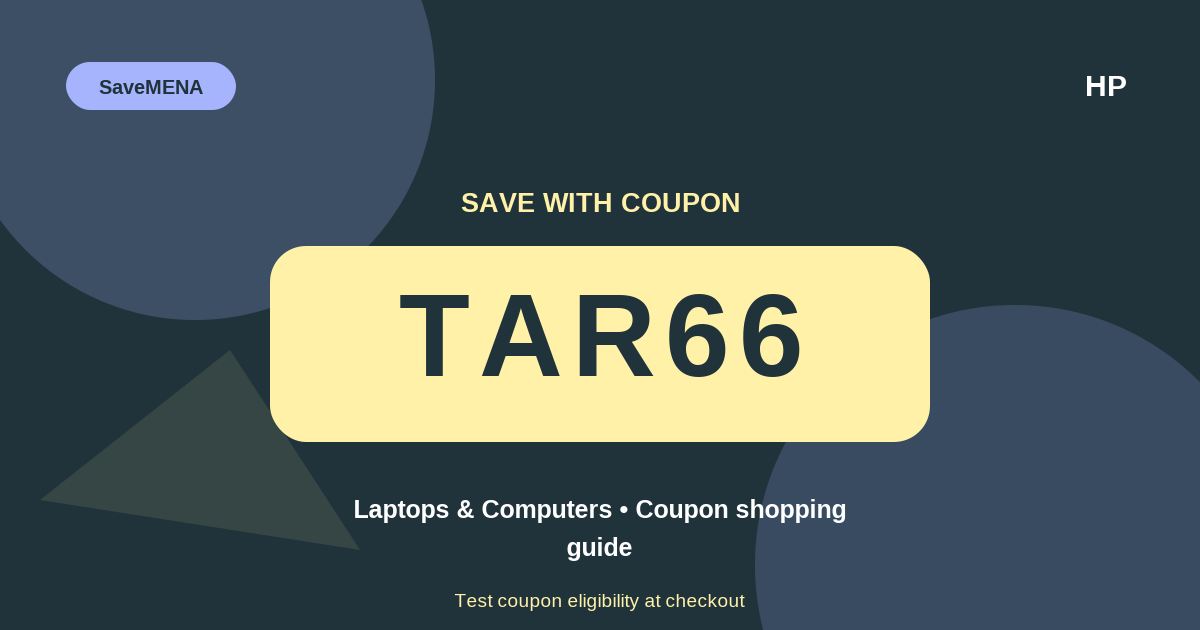
Codes available to try while comparing
These codes are not guaranteed for the article topic or listed brands; test them at checkout and use the live result.
1. Pinpoint the Exact HP Laptop Variant
Before browsing Noon UAE, write down the full specification you need: processor generation, RAM size, storage type and capacity, screen resolution, and any other distinguishing feature of the HP model. This prevents you from accidentally adding a slightly different configuration to your cart, which could invalidate any coupon application or alter the availability status at checkout. Submitting the wrong variant can also lead to a delayed shipment if the specific model is out of stock. Ensure the name or SKU you note matches the listing on Noon’s product page exactly.
Once you have the variant identified, search it directly on Noon UAE by entering the exact model name or core specifications into the search bar. Avoid generic searches like “HP laptop” because they return incomplete listings. Filtering by the exact details—such as “HP Pavilion 15.6”, “8GB RAM”, “512GB SSD”—helps you quickly locate the precise item and immediately check its availability status displayed next to the price.
2. Verify Stock Status on Noon’s Product Page
Hover or click on the “Add to Cart” button area to see the stock indicator. If the page shows “In Stock”, “Available for delivery”, or a similar phrase, the SKU is currently available. Pay particular attention to the “Products in Stock” line if it appears; this confirms real‑time inventory for that variant. If the status reads “Out of Stock”, “Not available”, or shows a restock notification, you need to choose a different variant or wait until the item is replenished.
Note that Noon occasionally displays a “Show more deliveries” button; clicking it reveals additional stock locations and expected dispatch dates. A consistent “In Stock” across all available locations increases confidence that the variant will be processed during checkout. Record any stock availability date displayed, as it may influence your purchasing decision if you need the laptop urgently.
3. Add the HP Laptop to Your Cart Before Applying Any Code
To lock in the variant, click “Add to Cart”. Once the item appears in your cart, double‑check the Cart view to confirm the correct model, color, memory, and storage values match the product page. This step ensures you are purchasing the exact configuration you intended and not a similar but different variant that might be unavailable later.
After adding the laptop, proceed to the cart summary page where you can see the item’s name, price, and a brief list of specs. There is no guarantee that Noon will maintain the exact variant at checkout; however, the cart’s current details let you compare them with any changes that appear when you apply a coupon.
4. Apply the TAR66 Coupon Code Before Completing Payment
In the cart or at the checkout address entry, locate the field labeled “Coupon Code” or “Apply Promo Code”. Type TAR66 exactly as shown, ensuring no extra spaces or misspellings. Wrong spelling or spaces will prevent any possible discount application. Once entered, click “Apply” to trigger the code validation at Noon’s system.
Notice whether the system rejects the code with an error message or a gentle prompt. A rejection does not automatically mean the code is invalid; it could also indicate that the code is not yet active, has expired, or is limited to certain items. Record any message; this will help you determine the next steps if you later want to explore alternative promo opportunities.
5. Confirm Coupon Application in the Summary Before Final Payment
After applying TAR66, the cart summary should refresh with a new line underneath the item price. If the code is accepted, a message like “Coupon applied” or “Discount applied” typically appears. Do not interpret this as a guaranteed price reduction; it merely indicates that Noon processed the code. Verify that the original item price and the line showing any discount match the values displayed on the product page.
If the summary shows a “No valid coupon” notice, the code did not tally with your current purchase. In that case, HIT the “Remove” button next to the code to clear it before proceeding to payment, so the system doesn’t attempt to apply the code again later, potentially forcing a different checkout path.
6. Verify the Final Payable Total Before Authorizing Payment
At the payment screen, examine the breakdown: item price, any applied discount line, order fee, and shipping fee icons. This zero‑sum calculation confirms the final amount to be charged to your chosen payment method. If the discount line is blank, TAR66 did not reduce the price, but the code was still considered.
Do not blindly confirm the order if any line appears inconsistent with what you expected. For example, if the “Order Fee” changes after applying a coupon, double‑check that the fee is legitimate. Only click “Continue” or “Pay Now” once the totals reflect your intended cost and the coupon’s effect—if any—has been applied in the final tally.
7. Double‑Check Order Summary and Shipping Details
Once payment is authorized, Noon presents an order summary page. Scrutinise the product listing to confirm the variant details—processor, RAM, color—match your initial selection. Also claim the “Seller” and “Dispatch Station” details; these clarify which inventory location will ship the laptop.
Verify the shipping options displayed. If a “Standard” or “Express” label appears, select the one that suits your timeline. Ensure the estimated delivery date aligns with the stock availability you saw earlier. If the date seems inconsistent, contact Noon’s customer support before finalising the order.
8. Collect the Confirmation and Track Delivery Status
After the order lands in your account, open the “My Orders” section on Noon UAE. Tap the order number to view full details. If you applied TAR66 and it worked, the order details should note that a promo code was used, although it doesn’t disclose the discount amount. Keep the confirmation email handy as proof of purchase.
Use the tracking feature linked to the order number to monitor progress. Pay attention to the “Last Updated” timestamp and any courier notes. If the laptop is out of stock or delayed, Noon usually updates the email or app with a revised ETA, giving you an honest window on when to expect arrival.
Related SaveMENA pages
Related articles
Official sources to check
Frequently asked questions
What if the TAR66 code doesn’t apply to my HP laptop?
If Noon rejects or ignores the code, it could be invalid for this model, expired, or limited to certain categories. In such a case, try another coupon or proceed without discount. The final checkout will display the original price if no valid promo is found.
Can I rely on Noon’s “In Stock” indicator to guarantee delivery?
The stock status shows availability at the time of viewing. While Noon attempts to honour it, unforeseen supply issues may still cause delays. Always review the shipping ETA after confirmation, as it reflects the most accurate delivery window.
Will the coupon affect the shipping fee on my order?
Normally, promo codes the coupon code the item price only, not shipping. However, Noon may waive shipping if specific conditions are met. Verify the shipping fee line in the summary; any change after applying the code indicates a shipping discount.
How can I confirm the final amount I paid before leaving my laptop?
Use the order summary on Noon’s “My Orders” section and the confirmation email. Both should list the same final payable total. If there’s a discrepancy, contact Noon support immediately.