Apple Mobile Accessories on Noon UAE: checkout message — testing coupons one at a time
Before you even type TAR66, sit behind your shopping cart in the Noon mobile app or desktop. The checkout page retails a list of items, shipping fees, and an input
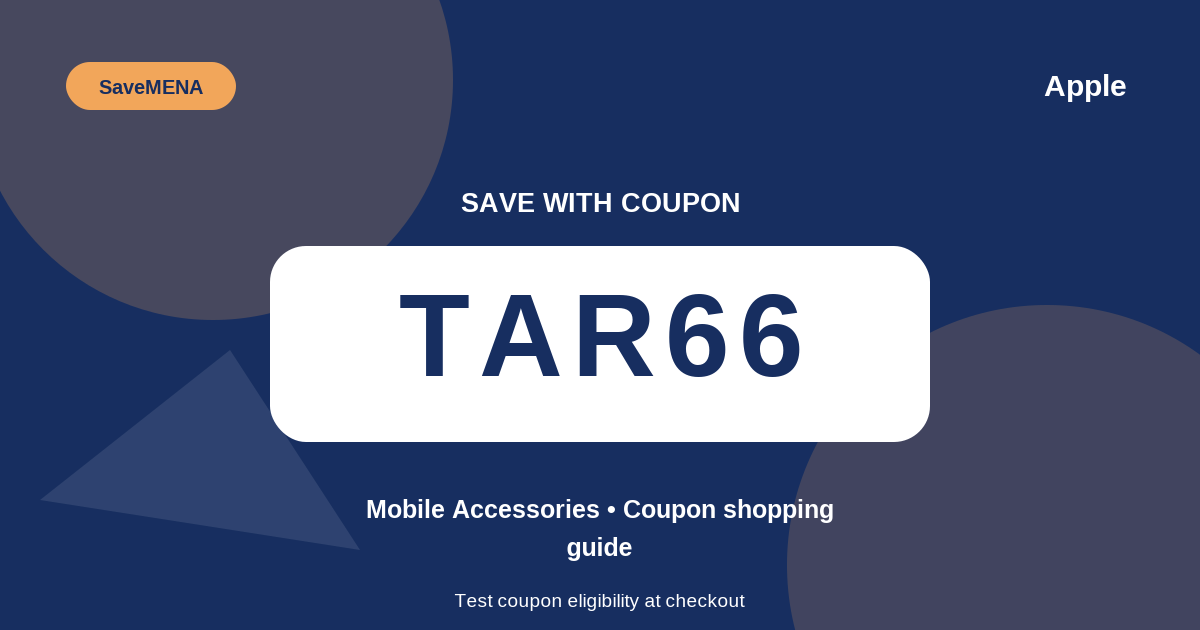
Codes available to try while comparing
These codes are not guaranteed for the article topic or listed brands; test them at checkout and use the live result.
Understand the Checkout Flow for Coupon Validation
Before you even type TAR66, sit behind your shopping cart in the Noon mobile app or desktop. The checkout page retails a list of items, shipping fees, and an input box labeled “Coupon code”—right next to a button that says “Apply.” Making sure that the items you are buying belong to the mobile accessories category gives clarity, because even the interface highlights category information. A mis‑categorised product may cause the coupon to silently fail, so double check the listing heading and verify that it is indeed a mobile accessory or Apple‑related mobile part.
Once you hit “Apply,” the app starts a quick server call that stitches the coupon with the cart. This moment is what creates the live coupon message you expect at checkout. Hold on to watch the color‑coded indicator, usually green or blue for success, or a subtle prompt stating it was rejected. By observing this live update, you capture whether the code has oddities such as being in an improper case or if the server flagged it as already used. These observations guide your next step.
Verify the App Version and Browser for Live Feedback
Mobile shoppers should first confirm they are running the latest iteration of the Noon app or using an updated browser. A stalled app version might render the coupon field unresponsive, delivering a live message that never updates. Checking your settings reveals whether an automatic update is pending. Likewise, if you’re on a desktop, calibrate Chrome, Edge, or Safari to the most recent release; older versions can be vulnerable to display bugs that obscure the live coupon confirmation. A small version bump can be all that separates a smooth transaction from a stalled one.
Once the environment is confirmed, test the coupon by clearing the cart and adding a fresh mobile accessory, preferably Apple‑branded. The live message should surface within a second – a skeleton animation may precede the final success text. Paying attention to the fade‑in opacity or color swap across browsers signals whether the notification layer is functioning. If the message appears static or delays beyond a few seconds, the app or browser may be mis‑rendering the NACK logic, blocking accurate coupon validation.
Match Product Category and Apple Compatibility
The TAR66 code doesn’t pledge a dedicated brand or category; however, real‑time validation often hinges on product alignment. If you are purchasing a mobile accessory that specifically mentions Apple compatibility in its title, that factor will surface in the live coupon message. For instance, a “Lightning to USB‑C charger” will signal the correct categorization, but a generic “charging cable” may lead the server to dismiss the code only subtly. Watching the live message helps confirm if the brand tag matters.
Furthermore, if you plan to add another Apple accessory later, note that the coupon evaluation process may refresh the cart total again. A live update after the second addition will echo the same callback chain. By using two Apple‑centric items side by side, you see whether the coupon holds constant or if the server defaults to a de‑eligible category. Identifying this behavior at checkout aids in deciding whether to keep the coupon active or to reset the cart and try again.
Confirm the Coupon Code Format and Uniqueness
The code “TAR66” follows a typical alphanumeric structure that the Noon server expects. Typing errors such as extra spaces or mis‑capitalization can trigger the live message to flash a warning. Typing it in all caps is safe, but appending a trailing space will produce a “code not found” alert instantly. Matrixing the coupon on a fresh key board ensures there are no invisible characters or copy‑paste artifacts that you may overlook.
If the live message rejects it without offering a fallback explanation, that signals the code might have been used beyond its intended single‑use rule. Authenticated users will see a “code already applied” prompt. In this scenario, you can consider refreshing the app or forcing a logout to ensure you are not hitting a residual session lock. These steps help you confirm whether the coupon uniqueness property is still active.
Assess the Live Coupon Message Cue
At checkout, the live coupon message is the definitive cue for whether TAR66 has been recognized. In a typical scenario, the interface will transition from a question mark icon to a check mark or the term “Accepted.” When you observe the color and text shift, you confirm the effect. Keep this visual cue under scrutiny, especially if you are running multiple codes; if the indicator remains “not accepted” between runs, that may mean the server has a buffer of already‑processed codes.
As you repeat the process, attach the live message to a tally sheet. Note the timestamp and whether there is a failure reason, such as “invalid coupon.” By mapping the message to time, you can trace linking to cart changes. If the message fails after adding a high‑price accessory, the issuer might have threshold restrictions. This monitoring at checkout is essential before deciding to keep or abandon the coupon.
Inspect the Final Payable Total and Discount Line
Even if the live message acknowledges the coupon, the final payable amount still needs to reflect the discount. In the payment summary, look for a dedicated line titled “Coupon Discount” or similar. A blank area indicates that while the coupon was recognized, the system didn't apply a monetary subtraction, possibly due to a conflict. This is a critical checkpoint, because you can verify the linear relationship between the live message and actual savings.
For a second‑level check, you can manually subtract the expected price range. Although the exact amount is not guaranteed, a relative drop of at least a few dirhams should be visible if the discount is active. If the total remains unchanged, consider terminating the transaction, logging out, and re‑initiating the process to illuminate any caching hiccups that may have swallowed the discount line. The final total, not just the live prompt, should be your ultimate verification.
Handle Situations Where the Coupon is Rejected
When the live message indicates rejection – typically a red exclamation mark – your workflow should pivot to troubleshooting. First, ensure that the cart meets any minimum spend that might be implicit. If the coupon still fails, clear the cart and add different items within the same category and re‑apply. This leap can reveal if a specific SKU is incompatible with TAR66, even though the category alignment expects compatibility.
Also, check whether you have previously utilized the code during the same session or incidentally within a broader campaign. A transient rejection sometimes appears because the server’s rate limiter locks a user to one coupon per hour. In these circumstances, a short pause, clearing cookies, or restarting the session will refresh the allowance. Such responsive actions at checkout maintain a smooth pathway for future coupon trials.
Record and Review Your Coupon Usage History
Save any output from the checkout screen—screenshots, text logs, or copy‑pasted messages—to create a record of what the live coupon message displayed for each attempt. After you exit the app, you can open your account settings, find the coupon usage tab, and audit the history. This audit reveals whether the code was applied, remained active, or was next flagged as expired. By aligning the recorded live messages with the logged usage, you can confirm the coupon’s lifecycle.
Over time, you may discover patterns: certain times of day yield rejection, while others pass. Use these insights to time future attempts more strategically. If a pattern emerges, you can reach out to Noon support for clarification. Nevertheless, trust that the configuration of each trial at the live checkout is the primary lens through which you evaluate TAR66’s operational status.
Related SaveMENA pages
Related articles
Official sources to check
Frequently asked questions
How do I know if TAR66 worked after checkout?
You confirm that the final order summary shows a line for the coupon discount next to the total payable. That line will display the monetary amount subtracted. If it’s absent, the code was accepted visually but not applied to the price.
Is TAR66 exclusive to Apple accessories?
No. The banner indicates the coupon is generic; it doesn’t limit applicability to Apple. That said, some stores may implicitly tie it to mobile accessories, so always verify category alignment before applying.
If the live coupon message stays green but the total is unchanged, what’s happening?
A green successful icon means the code was recognized, but a coupon may still be de‑activated if the cart doesn’t meet hidden rules like a spend threshold. Refresh the page or test a different item to see if the discount appears.
Can I use TAR66 on multiple carts during the same session?
No, most coupon codes have a single‑use rule per session to prevent abuse. If you attempt to reapply, the live message will typically indicate the code has already been used and will not recur until a new session.