Apple Laptops on Noon UAE: payment method — testing coupons one at a time · TAR73
If you’re testing multiple coupon codes one at a time on Noon for laptops in the UAE while paying with Apple Pay, this guide walks you through the precise steps.
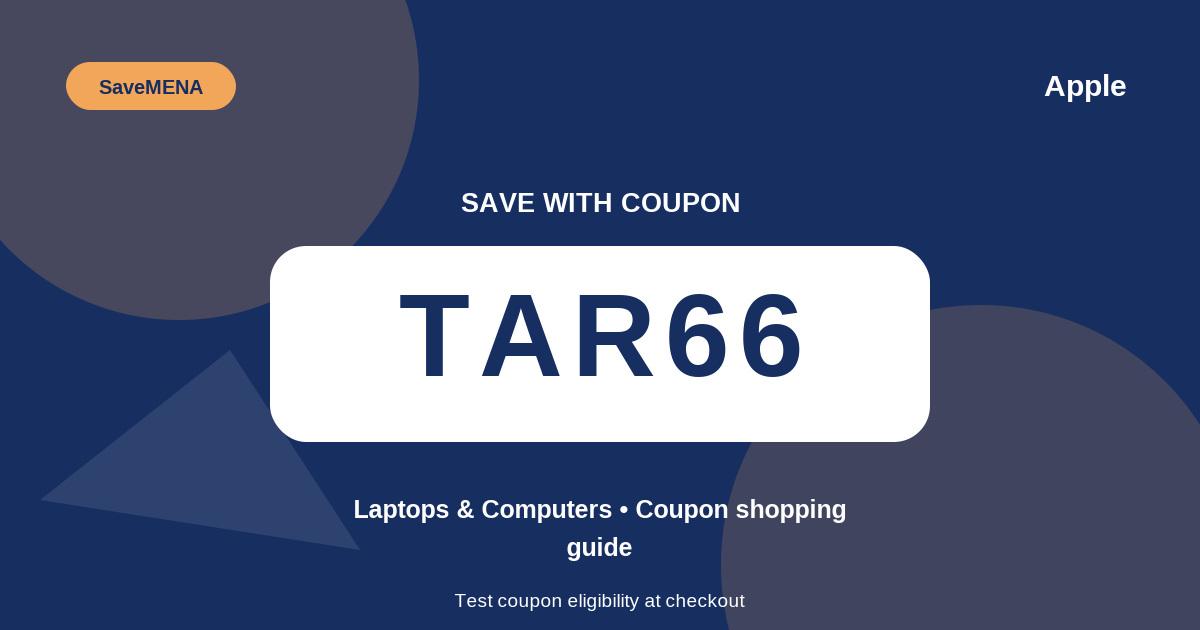
Codes available to try while comparing
These codes are not guaranteed for the article topic or listed brands; test them at checkout and use the live result.
1. Choosing the Right Laptop for Noon UAE
Start by browsing Noon’s laptop collection. Filter for brands, specs, and user ratings that align with your needs—whether it’s a budget model, gaming rig, or business‑grade machine. Make sure the item is listed for UAE delivery; this guarantees that shipping times and local taxes match your expectations. If the model appears limited‑stock or has a carrier‑specific price, note that before adding it to your basket.
Password and security settings on Noon can impact the checkout flow. Ensure you’re logged in with a verified UAE address to avoid any routing issues. Double‑check the laptop’s included warranty terms and whether it’s eligible for an Apple payment method, as some sellers integrate payment alternatives that might affect Apple Pay compatibility.
2. Adding the Laptop to Your Cart: The First Test
Click “Add to Cart” on the selected laptop and review the cart details. Confirm that the listed price, product title, and seller information match your selection. This pre‑checkout step is critical because it locks the unit cost for the coupon application that follows.
Check the cart for any automatic discounts or promotions already applied. Remove or pause any that might interfere with your manual coupon testing. Once the cart reflects only the chosen laptop, you’re ready to enter the TAR73 code on the next screen.
3. Applying the TAR73 Coupon Code
Navigate to the cart’s coupon entry field and type “TAR73”. Click apply. The system will process the code immediately; if it’s valid, the cart subtotal should reflect a qualification for an unknown discount. If the code is not recognized, an error message will appear, and you can then try another code you might have on hand.
Do not assume that a different coupon code will override the same. Each attempt should start fresh—remove the previous code from the cart before applying a new one—to isolate its effect accurately.
4. Verifying Discount Application at Checkout
Proceed to the checkout screen. Carefully compare the displayed total with the sum of the laptop price, any applicable taxes, and potential shipping. The discount amount, if applied, will usually appear as a separate line or a reduction next to the subtotal.
Even if the discount amount is not shown explicitly, the difference between the pre‑coupon subtotal and the final payable total indicates the benefit received. Record this figure; it will help you evaluate each code’s impact objectively.
5. Using Apple Pay: Ensuring Compatibility
Before confirming payment, verify that Apple Pay is an available option for the selected laptop. Check the payment method list and ensure your device is registered with a card that’s accepted in the UAE. Apple’s interface on Noon should prompt for Touch ID or Face ID to approve the transaction.
If Apple Pay is unavailable, the cart will likely offer alternative payment methods. In such a case, abort the order, select a different laptop with Apple Pay support, and repeat the coupon testing process.
6. Recording Order Total After Coupon Application
Once Apple Pay is chosen, review the final total again. This figure includes the laptop price, tax, potential shipping, and the applied discount from the code. The total you see here is the definitive amount you will pay—no additional fees will appear after selection.
Make a note of this total for comparison if you test another coupon later. The comparison will anchor your decision on which code yields the most benefit for this specific laptop.
7. Re‑Entering a New Coupon Code
To test a new code, start by removing the current one from the cart or checkout page. Then bring back the cart, re‑add the laptop, and enter the desired new code. Always perform a fresh removal to ensure no residual discount carries over.
Follow the same verification steps: apply the new code, observe the change in subtotal, and confirm the final total with Apple Pay. Record each outcome so you can later decide which code delivers the best value for the laptop you purchased.
8. Final Confirmation and Order Placement
When all tests are complete and you have identified the preferred coupon, finalize the order. Click the purchase button, authenticate with Apple Pay, and complete the transaction. The confirmation page will display a summary showing product, price, applied discount, tax, and shipping.
This summary is the ultimate reference for your purchase. Keep the confirmation email for your records. Subsequent inquiries or disputes about the discount will rely on this documentation, so store it securely.
Related SaveMENA pages
Related articles
Official sources to check
Frequently asked questions
How do I know if the TAR73 code actually worked?
The final payable total on the checkout page reveals the discount. If the total reflects a lower amount than the sum of the laptop price, tax, and shipping, the code was accepted. The discount difference will be the saved amount.
Can I use the TAR73 code on a laptop sold by a third‑party vendor?
Use the same steps: apply the code in the cart, verify the discount at checkout, and confirm Apple Pay compatibility. If the vendor does not support Apple Pay, the code won’t process in that transaction.
What should I do if the code disappears after I remove it?
Delete the code entry completely, then re-enter it in the cart before checking out. This ensures there’s no leftover discount code affecting future attempts.
Is the discount applied to shipping?
Check the checkout summary. Discounts typically adjust the subtotal before tax and shipping, but the exact application can vary. The final total reflects whether shipping costs have been reduced.