Puma Women’s Fashion on Noon UAE: payment method — testing coupons one at a time · TAR71
Start by selecting a Puma item that suits your style—whether it’s a sports jersey, a casual tee, or a chic jacket.
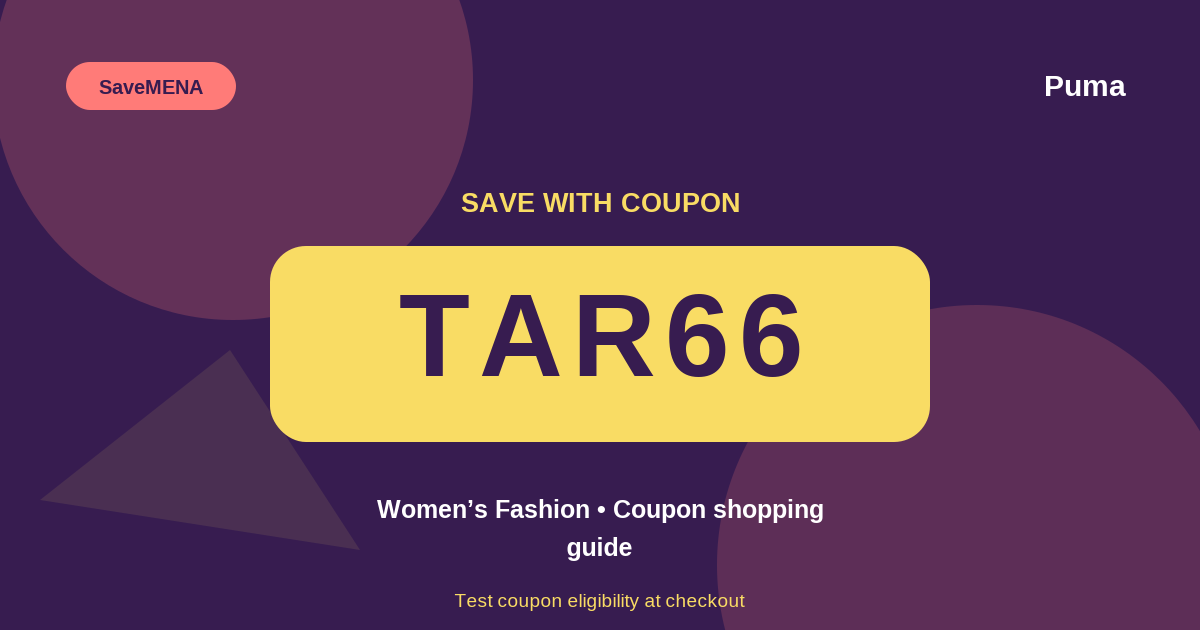
Codes available to try while comparing
These codes are not guaranteed for the article topic or listed brands; test them at checkout and use the live result.
1. Choosing the Right Product and Seller
Start by selecting a Puma item that suits your style—whether it’s a sports jersey, a casual tee, or a chic jacket. Browse Noon’s dedicated women's fashion section, filtering by brand to bring the catalogue to its most relevant subset. Pay close attention to the seller’s rating and shipping details, as these factors can affect delays or returns. A seller with a high rating and straightforward return policy offers a smoother experience if any issue arises with the order or the coupon. Once you have narrowed down your choices, add the desired item to your cart and proceed to the next stage.
At this point, the shopping cart will display the item price and any applicable taxes or fees. Keep the cart open; you’ll need to revisit the page to apply the TAR71 coupon code. Be mindful that the product’s availability might change, especially if it’s on a limited run, so confirm once more before proceeding to checkout.
2. Understanding Noon’s Payment Method Options
Noon offers several payment avenues: credit/debit cards, PayPal, Apple Pay, Samsung Pay, and sometimes local schemes like eNaira or UAE UPI. Choosing your preferred method sets the tone for the checks that will follow later in the payment confirmation step. When you reach the payment page, you’ll see the entire list of accepted methods; some methods may have lesser compatibility with certain promotional codes, which is why noting this early in the process is essential.
During the payment selection, observe how the site highlights whether the chosen method supports coupon usage. Some payment options only display a generic “pay” button without displaying the final transaction (including code application) until after shipping fees. Confirm your wallet is sufficiently funded for the full amount before proceeding, as payment will finally be captured only after coupon verification.
3. Step‑By‑Step: Applying the TAR71 Code
Navigate to the cart overview where the item’s total and any taxes appear. Beneath the price details, you’ll find an input field labeled “Enter coupon code.” Type TAR71 into this box, then click “Apply.” If the code is valid and applicable to the current item, the page will refresh and show a new total. Even if the discount amount isn’t explicitly displayed, the change in the total confirms the code was accepted.
Once you are sure the code has taken effect, review the updated subtotal to ensure it matches the expected value before you move on to the shipping or payment section. It’s a quick confirmation point—if the coupon is not applied, double‑check for any typos or extraneous spaces before trying again.
4. Checking Coupon Validity During Checkout
Proceed to “Proceed to Checkout.” Here, Noon may display a summary line that reads “coupon applied” along with the new amount. If the code is no longer valid at this stage, the system will automatically revert to the original price, often prompting an error message. Such a message indicates that the coupon expired or that it does not support the payment method you have selected; in that case, you may need to start again.
It’s also worth noting that the confirmation page will show the eventual payment amount before your card or other method is charged. If you’re using a payment method that requires extra steps (e.g., PayPal redirect), this still falls under the same verification, so keep the eyes on the final amount displayed.
5. Confirming Payment Eligibility with Coupon
A coupon is not guaranteed; verify its result at the retailer checkout. In some cases, if a particular method can’t be paired with a discount, the system will disable the “Place Order” button or prompt you to choose another option. If the button remains active, it typically means that the code is successfully tied to your chosen payment type.
Some payment methods also show a pre‑authorization preview, allowing you to see that the final amount will match the discounted price. If there is a discrepancy, double‑click the method, confirm the charges, or wait for the next screen to prevent any unexpected final payment.
6. Monitoring Your Order Status
Once the payment is processed, Noon will redirect you to an order confirmation page that lists the transaction ID, total paid, and expected delivery window.A coupon is not guaranteed; verify its result at the retailer checkout. If the confirmation screen doesn’t show the coupon, your payment may have slipped through without the discount; your best course is to contact Noon’s support immediately.
You can also log into your Noon account and view the order under “My Orders.” Here, the interface will display the final paid amount and the status of the order in real time. This section also shows any refunds or adjustments, so you should regularly check to confirm everything aligns with your expectations.
7. Handling Payment or Coupon Issues
In the unlikely event that the payment does not go through or the coupon is rejected after the order was placed, the most reliable recourse is to open a support ticket in Noon’s help center. Include screenshot evidence of the attempt, the product details, and the exact error messages displayed. Support can do a re‑authorization or offer a manual ticket refund if the coupon was incorrectly applied from the front‑end.
Another option is to cancel the order if it’s still in a “Processing” state. Noon typically allows cancellations within 24 hours of placing the order—use this window to re‑attempt with a different combination of coupon and payment method. Always keep track of any changes to your cart or order number.
Related SaveMENA pages
Related articles
Official sources to check
Frequently asked questions
How can I verify if the TAR71 code is successfully applied before I pay?
On the checkout page, after you click “Apply,” the cart summary will refresh showing the new total. If the discount is reflected, you’ll see a line indicating the coupon was applied; otherwise, the original total will remain.
What if my chosen payment method doesn’t support savings coupons?
During the payment selection, Noon might disable the “Place Order” button or prompt you to choose another method. If that happens, try an alternative payment option that does support the coupon.
Will the discount be shown on my receipt or email confirmation?
Your order confirmation page and the receipt you receive via email should display the final paid amount along with a note that the coupon was applied. Confirm the total matches your expectations.
Can I combine multiple coupons from Noon at once?
Noon typically allows only one coupon code per transaction. The TAR71 code can’t be stacked with another code, so use it alone when applying discounts during checkout.