Puma Men’s Fashion on Noon UAE: price changes — testing coupons one at a time
try Noon UAE coupon codes Men’s Fashion Puma rechecking after a price change: .. Verify the actual item, seller, and checkout total; the coupon is available to try
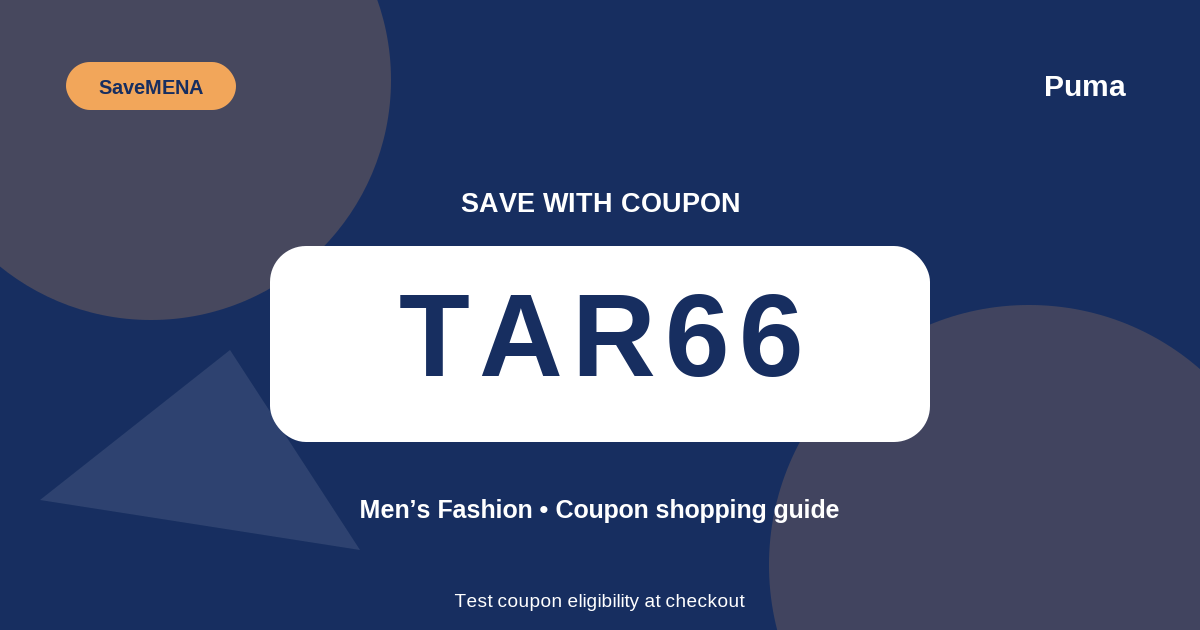
Codes available to try while comparing
These codes are not guaranteed for the article topic or listed brands; test them at checkout and use the live result.
1. Verify the Current Retail Price on the Product Page
The first practical decision when a price change occurs is to return to the product’s listing page on Noon. Compare the displayed price with the one you expect, based on recent news or previous orders. Pay close attention to any “Price Drop” badge or note that may indicate a lower cost is now available. If the page shows a different figure than what was in your cart, it signals a price change and may affect coupon applicability.
After confirming the new price, open the product details again before proceeding to the cart. The order total shown in the dropdown should match the listing price. If there is a discrepancy, flag it as a potential issue; most sellers update the cart automatically, but manual refresh may be required to reflect the new amount.
2. Re‑Add the Item After Refreshing the Cart
When the cart still shows the old price, even though the product page shows a new, lower price, the next step is to remove the item from the cart and add it back again. Clearing the cart forces the platform to re‑fetch the updated price from the seller’s inventory. This ensures that all subsequent calculations—discounts, tax, and shipping—use the current figure.
Once you re‑add the product, double‑check the cart summary immediately for the updated amount. If the listing price differs from the cart value, the cart may still be caching old data; refresh the browser or log out and log back in to sync the correct price.
3. Apply the Coupon After Confirming the New Cart Total
Only after the cart displays the new price should you proceed to the coupon field. Enter “TAR66” exactly as shown, respecting capitalization and avoiding spaces, then click Apply. The platform will instantly recalculate the subtotal. If the coupon fails to apply, an error message will appear explaining the issue.
Read that error carefully: common problems include the coupon being restricted to specific product categories or minimum spend. Because we don’t know any such restrictions, you must rely on the message at checkout. If it says the coupon does not apply due to the new price, you can try re‑adding the coupon after confirming the item’s price again.
4. Inspect the Final Payable Amount and Tax Calculation
After the coupon is applied, examine every line item in the checkout page. The subtotal, tax, and any service fees should be displayed. Ensure that the tax calculation is based on the new price, not the old one. If the tax section still uses the higher amount, a manual refresh or re‑entry of the coupon is required.
Once all figures are confirmed, double‑check the final total shown at the bottom. This is the amount that will be charged to your payment method. If the total still doesn’t reflect the coupon or price change, note the discrepancy for contact with Noon’s customer service.
5. Confirm Delivery Fees Are Updated with the New Cart Value
Delivery charges on Noon sometimes vary based on the total cart value. If the price dropped, the shipping fee might change—either decreasing or staying the same. Review the shipping section on the checkout page to see if the fee has adjusted accordingly.
Keep in mind that some sellers include a flat shipping fee, unchanged regardless of the cart total. If the delivery charge appears inconsistent with the new price, remind yourself to verify the shipping cost at the final payment step.
6. Ensure the Coupon Is Not Limited by Payment Method or Account Status
Coupons on Noon can occasionally be restricted for certain payment options or account types. For example, a voucher might only work if you pay with a specific card or if you hold a particular loyalty tier. Verify that your chosen payment method is compatible before finalizing the purchase.
Open the payment method selection screen and confirm your card or wallet is active. If a message indicates incompatibility after applying the coupon, switch to an alternative payment method and try applying the coupon again.
7. Compare Alternative Sellers After a Price Adjustment
Once your cart totals and coupon status are confirmed, it can be worthwhile to check if other sellers list the same Puma item at a lower price. Sometimes price changes affect only one vendor, while another maintains a higher listing. This step helps ensure you’re getting the best deal.
Navigate back to Noon’s search results, and filter the listings by brand and category. Look for the same product name or description, then compare the listed price and seller rating. If a lower price appears, consider moving the item to that seller’s listing for a potentially better discount.
8. Verify Final Payable Total Before Submitting Order
Before you hit “Place Order,” carefully re‑examine the grand total in the checkout summary. This figure includes the product price, any coupon deduction, tax, and shipping. It is the final amount that will be charged once the payment is processed.
If the final amount seems incorrect—either too high or still shows a pre‑price‑change figure—use the cancel or back button to revisit previous steps. Once the number matches expectations, proceed to complete the transaction and keep an eye on the receipt email to confirm the applied coupon and final cost.
Related SaveMENA pages
Related articles
Official sources to check
Frequently asked questions
What does "TAR66" do on Noon?
“TAR66” is a coupon code you can try during checkout. Its effect depends on Noon’s current promotion rules, and you need to apply it on the final payment page to see if it provides a discount.
Will the price drop automatically update my cart if the product price changes?
On Noon, the cart often reflects the latest price after you refresh the page or re‑add the item. If it doesn’t, manually remove and re‑add the product to trigger an update.
Do I need a minimum spend to use the coupon?
Unless a specific minimum is stated in the coupon terms at checkout, you can use “TAR66” regardless of the cart value. Verify any prompts on the coupon application screen.
How can I confirm if the coupon has been applied?
After applying the code, the checkout page will show a discount line and adjust the total. If the total remains unchanged, the coupon hasn’t been applied; read the error message for guidance.