Huawei Mobiles on Noon UAE: price changes — testing coupons one at a time
try Noon UAE coupon codes Mobiles Huawei rechecking after a price change: If you’re looking to try Noon UAE coupon codes for mobiles, especially Huawei models
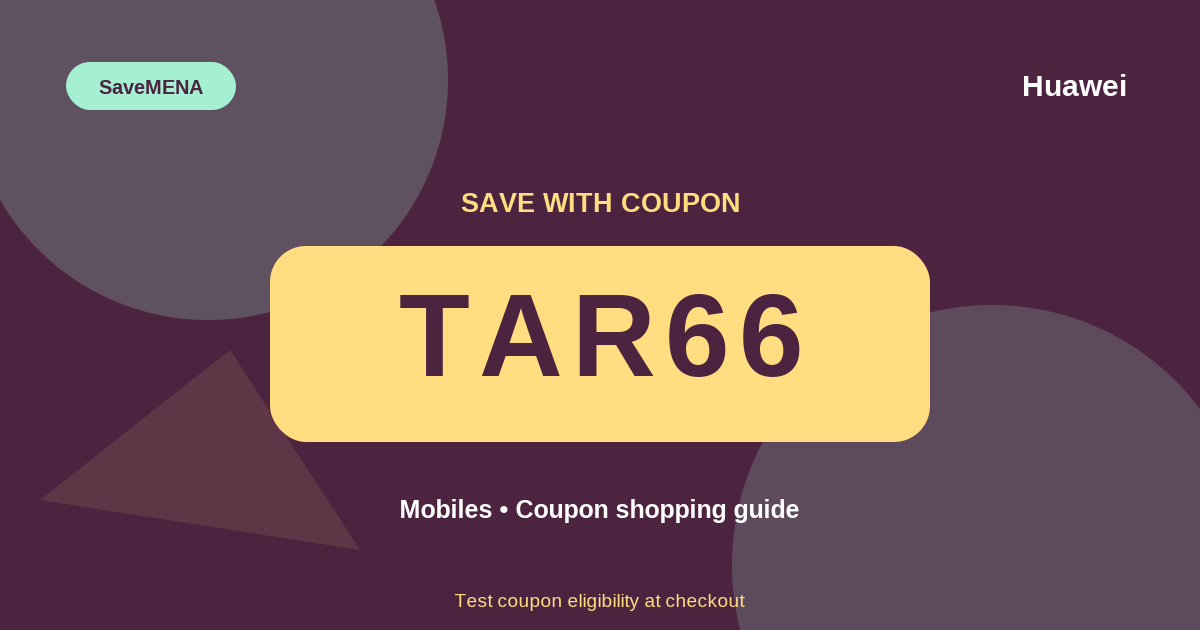
Codes available to try while comparing
These codes are not guaranteed for the article topic or listed brands; test them at checkout and use the live result.
Identifying the Price Episode and Preparing for Coupon Trial
Begin by noting the exact price that the Huawei mobile was listed at before any change. You can capture a screenshot or record the amount in a note, as this will serve as the baseline against which you compare the new price after the change. Knowing the original price helps you gauge whether the discount code will have a meaningful impact and whether any price hikes have occurred that might affect your budget.
Once you have the baseline, log onto Noon and search for the same mobile model. If the listing still appears, compare the displayed price to your snapshot; any difference indicates a price change. At this point, also double‑check that you’re on the official Noon UAE site or app, not a third‑party interface, to avoid misreading deals that could belong to separate marketplaces.
Locating the Huawei Mobile Listing on Noon
Use the search bar to enter the Huawei model name or its HS code if you have it. Filters such as brand, price range, and seller rating can narrow down options to the official listing that matches your earlier snapshot. Pay particular attention to the product title and seller markings; any deviation might signal a different variant or an unofficial reseller. This step ensures you’re testing the coupon on the intended item, not a similar model with distinct pricing or warranty terms.
Once you locate the listing, click through to the product detail page. Verify the key details—specifications, color, memory size, and any bundled accessories—to confirm that the product is the same as the one you referenced before the price change. You can also check the seller’s rating and review count; while not a guarantee, higher ratings often suggest a more reliable transaction experience, especially when revisiting a changed price.
Assessing Availability and Delivery Details
Before applying any coupon code, tap the “Add to Cart” button to trigger the availability check. Noon will display whether the item is in stock and confirm the dispatch location. If the seller marks unavailable or “Out of stock,” the coupon will be inapplicable, and you’ll need to wait until inventory updates. This step is vital, as price changes can often be associated with restocking delays.
After adding the product, review the estimated delivery window and any applicable shipping charges. Distinguish between standard and priority shipping, as courier fees can affect the final payable figure. Record these details because they will contribute to the overall cost that you’ll see after coupon application, ensuring that the money saved truly reflects the whole transaction.
Adding to Cart and Applying TAR66 Coupon
Move to the cart page and double‑check that the correct model, variant, and quantity are listed. Here you’ll then find the field to enter your coupon code. Type TAR66 exactly as shown, including letter case, and click “Apply.” The page should immediately recalculate the subtotal, displaying the discount amount next to the original price if applicable. This visual confirmation lets you verify that the code has taken effect before proceeding.
If the code does not appear to apply—no discount shown or an error message returned—it may mean the coupon is inactive for that listing or price point. In that case, kindly try again after contacting Noon support or retry with a different convention of the code, but remember that no guarantee is made that TAR66 will work. Keep the screenshot or note of any error to refer back to if needed.
Reviewing the Adjusted Total After Coupon Application
Scroll to the subtotal area after the coupon has been applied. The system should list the original price, the subtractive discount value, and the new subtotal before taxes. This subtotal is the amount that will be subject to VAT, which Noon typically adds later in the checkout flow. Confirm that the discounted amount is represented accurately; any discrepancy might indicate a misapplication or a price cut that was not intended by the coupon.
After confirming the subtotal, scroll further to the “Total” line. This line includes shipping and taxes. Compare this final amount to what you expect based on the original price, the discount (if any), and the shipped charges. If the total seems higher than anticipated, double‑check that no additional accessories or mandatory warranties were accidentally added during the cart stage. All adjustments at this point should be visible before you commit to payment.
Verifying Tax and Service Charges
UAE purchases accrue a the discount shown at checkout VAT on the final payable amount, calculated after shipping and any discounts. Noon generally displays the VAT amount in a separate line on the payment screen. Verify this figure by ensuring that the VAT applied corresponds to the discount shown at checkout of the subtotal plus shipping, as calculated by the platform. If the VAT differs, it could signal an oversight or a special exemption that Noon might apply.
Service fees, if any, are applied separately. They may arise from using certain payment methods or expedited services. Check that the fee details are transparent, and confirm the total cost again. These final checks guarantee that no unanticipated charge will surprise you once your payment is processed, especially after a price shift that could alter how much tax you owe.
Final Checkout Confirmation and Payment Method
When you click “Add to Wallet” or proceed to payment, review the order confirmation page one last time. Pay special attention to the card icon that appears, the card type, and the last four digits; also ensure that the correct listing is billed. This page is the definitive record that Noon will use to process the order and settle the payment. Any inconsistencies here could trigger a refund or cancellation later.
Your selected payment method will execute the transaction. If you’re using a digital wallet or credit card, confirm that the displayed amount matches the final “Total” line. Pay attention to any prompts about using the same payment method as previously used, especially if the price has changed since that last purchase. Verification at this step locks the final cost before the order is locked in.
Rechecking the Order Post‑Purchase After Price Change
After you receive the order summary or receipt, scroll through each line item to confirm that the price, discount, shipping, and taxes all match what you saw during checkout. Note down the order ID and the final amount paid; this detail is crucial if Noon’s system adjusts the price again (rare, but possible for inventory discrepancies). By keeping a digital copy of the receipt, you can compare it against any future communication from Noon.
If you notice any mismatch—say, the total on the receipt is higher than what you paid—the bill might involve additional fees or a server error. In such a case, contact Noon support with your order number, noting the discrepancy. While the coupon code itself may not guarantee a discount, this post‑purchase check ensures you can swiftly address and rectify any issues that surface from a price change.
Related SaveMENA pages
Related articles
Official sources to check
Frequently asked questions
What does the decision lens “rechecking after a price change” mean for my purchase?
It means that after you see a price shift, you should verify the new total, apply the coupon, and confirm the final payable amount before confirming payment, ensuring no unanticipated charges arise post‑checkout.
Can I rely on the TAR66 coupon to get a discount on all Huawei models?
Only after confirming it applies to the specific listing. Noon does not guarantee the coupon will work across all models; you must apply it and watch for the discount to appear in the cart.
Do price changes affect tax or shipping fees on Noon?
VAT remains the discount shown at checkout of the subtotal plus shipping; however, some sellers may alter shipping costs. Always double‑check the tax line when a price shift occurs before payment.
What should I do if the order receipt shows a higher amount than I paid?
Contact Noon support with your order ID. Document the discrepancy and request a clarification or correction; price changes should not lead to over‑charges.