Samsung Smart Watches on Noon UAE: checkout message — seller checks
Start by locating the official Noon UAE seller URL for Samsung Smart Watches. Verify the seller badge, ensuring it reads “Noon UAE Seller.” This badge signals the
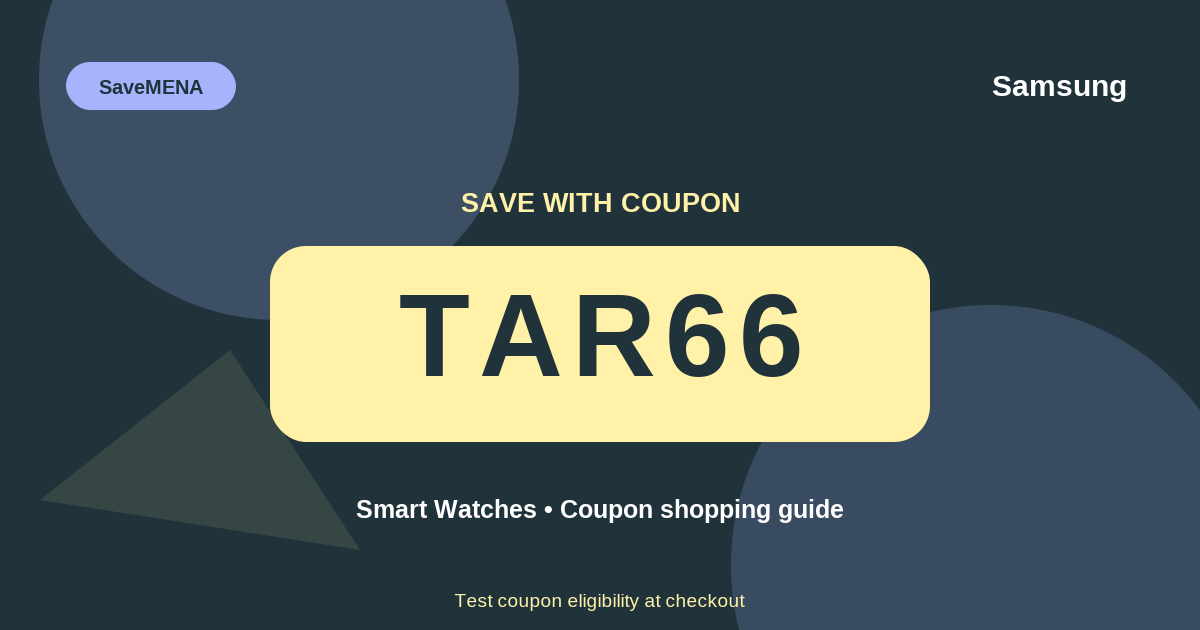
Codes available to try while comparing
These codes are not guaranteed for the article topic or listed brands; test them at checkout and use the live result.
1. Pinpoint the Noon UAE Seller and Product Listing
Start by locating the official Noon UAE seller URL for Samsung Smart Watches. Verify the seller badge, ensuring it reads “Noon UAE Seller.” This badge signals the seller has authorized access to Noon’s catalog. Note that this step does not yet influence the live coupon message; it merely establishes the transaction’s origin. Read the product details—specifications, return policy, and shipping notice—so you are fully aware of any conditions that might affect checkout behavior. For a thorough comparison, bookmark a few listings that share similar features so you can later decide on the best fit.
While scrolling, pay attention to the seller’s overall listing rating. Although rating does not guarantee coupon application, a reputable seller usually sustains a consistent checkout process. SaveMENA does not endorse or verify any seller badges, so regard this step as a due diligence activity rather than a guarantee of discount eligibility. Moving on, you’ll add the product to your cart to trigger the next stage of verification.
2. Add to Cart and Monitor the Confirmation Prompt
Once you choose the Samsung Smart Watch that meets your preferences, click “Add to Cart.” Notice whether a short-lived confirmation message appears—often a toast indicating that the item has entered the cart. This confirmation does not reflect coupon application but confirms the item has been queued for checkout. Use this moment to double-check variant details, quantity, and any selected options such as band color or size, as errors here can shift the final payable amount and potentially nullify a coupon.
During this step, keep an eye on the cart icon’s total items count, ensuring your selection hasn’t accidentally dropped. SaveMENA advises staying alert to any example: if the cart total changes unexpectedly after adding certain accessories, adjust before proceeding. The cart is still a preparatory environment; it is in the next section where the live coupon message manifests.
3. Proceed to Checkout and Witness the Live Coupon Message
With your cart ready, press “Proceed to Checkout.” The system will prompt you to log in or use an existing account. After that, you’ll be taken to the address confirmation page. Here, select or add your preferred delivery address, then proceed. Once you reach the “Apply Coupon” field, enter TAR66. Notice the dynamic banner or pop‑up that appears in real time beneath or above the field. This live coupon message will state “Coupon applied” or “Discount pending” depending on eligibility.
When the banner appears, note its wording carefully. It should explicitly reference the TAR66 code. Even if the message indicates “Discount pending,” that signals the coupon has been recognized but needs further conditions satisfied. This public flag eliminates guesswork about hidden validations that may surface only after final payment. SaveMENA points out that the live message is a reliable, in‑flight indicator and should be the priority when assessing whether a discount is truly active.
4. Interpret the Live Coupon Message for Eligibility Confirmation
Read the banner after hitting “Apply Coupon.” A successful message will usually read something like “TAR66 – Voucher applied successfully” or mention a temporary deduction from the final amount. If a different phrase, such as “Coupon not applicable” or “Requires minimum purchase,” appears, record this and exit checkout to adjust your cart. This live cue is your instant confirmation: if the message does not confirm the code, the checkout will not apply the discount at all. The banner reflects the platform’s real‑time validation logic.
In the rare event of a vague banner, scroll for additional details or check the FAQ icon near the coupon field for guidance. Always remember: the live message is the only reliable reference until the final total updates. Double-check that the banner persists even after you lose focus or refresh the page, confirming it isn’t a transient glitch. If the message disappears, you must re‑apply the coupon to affirm eligibility.
5. Verify Cart Conditions That Affect Coupon Acceptance
If the live coupon message reads “Requires minimum purchase” or you see a line noting “Discount pending,” confirm that your cart total meets the specified threshold. Since no exact figures are disclosed, compare the pre‑coupon subtotal against your understanding of typical Samsung Smart Watch pricing. If the subtotal falls short, add an additional item or increase quantity to satisfy the requirement. Once the cart meets the threshold, the live banner will usually update to reflect the applied discount.
Pay particular attention to shipping fees; some sellers add a nominal processing charge that can affect the threshold. The live banner’s status may change once you adjust the total. Keep the cart visible so you can note any new messages or changes bouncing back. SaveMENA’s guidance emphasizes tracking these fluctuations to avoid being caught off‑guard during payment.
6. Adjust Quantity or Remove Items to Align Coupon Conditions
When the live coupon message indicates invalid usage due to quantity or product mix, revisit the cart to adjust. For instance, if the coupon only applies to a single Samsung Smart Watch per order, reduce any other Samsung devices to one. If additional accessories are mandatory, add them before re‑applying the coupon. This manual curation ensures the cart structure matches the conditions perceived by the platform.
After any adjustment, re‑click “Apply Coupon” and watch the banner update. A successful update means the Live Coupon message has responded to the cart tweak. Observe that the banner remains consistent; if it flickers or vanishes, save the screen or note the change to verify again. Modifications made after applying the coupon do not retroactively confirm the discount—you must re‑validate each time.
7. Validate the Final Payable Amount Post Live Message
With a successful live coupon banner secured, scroll to the final amount section. The system should display a new total that subtracts the coupon’s effect. Compare this total to the number shown before applying the coupon—if they match minus the rebate, the coupon has functioned. If the figures duplicate, the coupon may have been recognized but not applied, indicating a hidden stall or stock issue.
Remember that SaveMENA does not guarantee savings or final totals. The live banner, however, arrived as evidence that Noon’s checkout logic accepted your code at that instant. To be certain, scrutinize any additional “processing fees” that could offset the discount. If the final amount looks unchanged, revisit the previous steps for any misapplied quantity or eligibility oversight.
8. Complete Payment While Confirming Live Coupon Persistence
Proceed to select a payment method—credit card, debit card, or digital wallet. At this point, the live coupon message should still be displayed on the screen. Confirm it has not disappeared after pressing “Pay.” SaveMENA advises taking a quick screenshot if you’re uncertain, which you can refer to later should the vendor request proof of discount application.
Once you finalize the transaction, wait for the thank‑you page that lists your order confirmation details. If the live coupon message is omitted from the final order summary, contact Noon customer support with your screenshot. The absence of the banner on the confirmation page may be a back‑end update, but reflection of the discount in the final total is the ultimate proof. Keep the confirmation and coupon banner as evidence for any post‑sale support or adjustments.
Related SaveMENA pages
Related articles
Official sources to check
Frequently asked questions
How do I know if TAR66 actually reduced my total if I don’t see the amount change right away?
Observe the banner’s wording; if it explicitly says “Coupon applied successfully,” the system recognized the code. The final amount should change once all conditions are met. If the number is unchanged, revisit the cart to check for hidden fees or minimum‑purchase rules that may still apply.
Will the live coupon banner disappear if I refresh the page?
Refreshing may clear the applied state, as coupons often require an active session. After a refresh, re‑enter TAR66 and watch for the banner to re‑appear before proceeding with payment.
Can I use TAR66 on multiple Samsung Smart Watches in one order?
The live coupon message will indicate whether the code applies to more than one item. If it displays a “requires single item” message, you need to reduce the cart to one watch to leverage the discount.
What should I do if the coupon banner only says “Coupon not applicable” at checkout?
Take note of the error message and review cart items for eligibility conditions. Adjust quantity or remove conflicting accessories, then re‑apply TAR66. If the issue persists, contact Noon support with the banner screenshot for further clarification.