Puma Sports on Noon UAE: checkout message — seller checks
Noon UAE seller and coupon Sports Puma the live coupon message at checkout: When you add Puma sports gear to your Noon UAE cart, the user‐experience often inclines
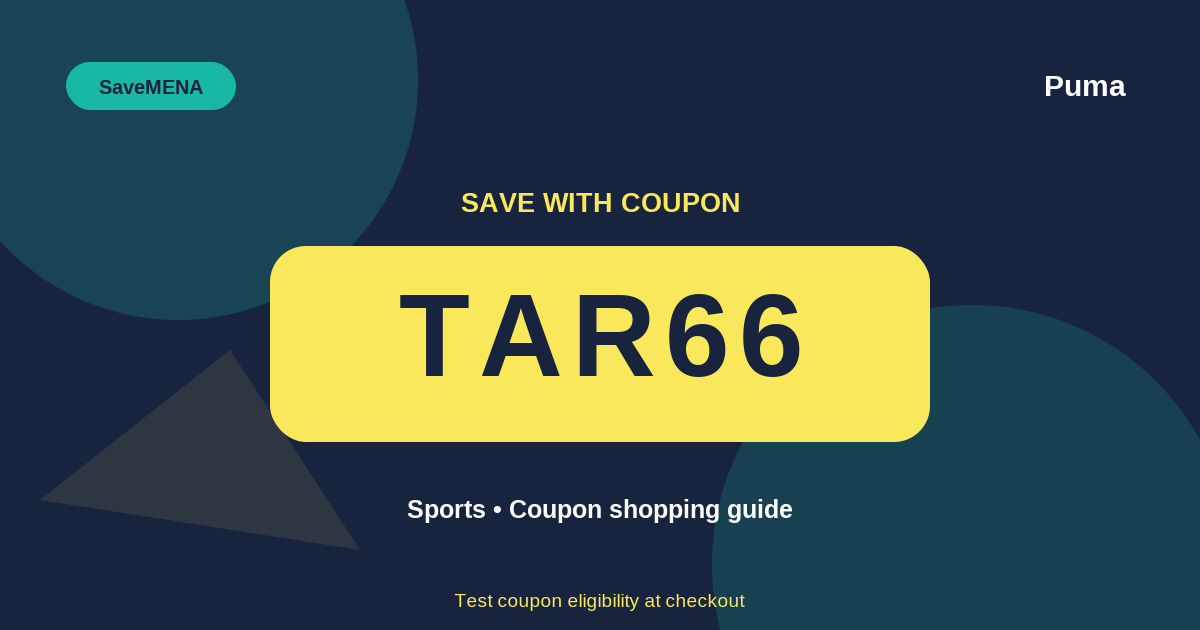
Codes available to try while comparing
These codes are not guaranteed for the article topic or listed brands; test them at checkout and use the live result.
1. Verify Seller Identity Before Applying the Coupon
On Noon, each product block lists the seller’s name; for Puma sports items, the label “Seller on Noon UAE” appears prominently. Hovering or clicking that name directs you to the seller’s profile, where you can read their ratings and available services. A seller’s verified badge is a signal of authenticity, but it does not guarantee coupon applicability. Before even opening the cart, note the seller’s phone number and support link, so you know whom to contact if the coupon fails at checkout.
Even if the seller is highly rated, their policies may forbid discount codes on branded sports items. Scanning the product description for a “No coupons” tag is vital. Right next to the price, sellers sometimes place a small label such as “Coupon not available” that overrides any code you try. If that label is present, the TAR66 code will not trigger, regardless of the live‑coupon prompt that might pop up during checkout.
2. Confirm Cart Contains Eligible Puma Sports Items
Once you’re sure the seller’s profile looks trustworthy, add the Puma football, running shoes, or training apparel to your cart. The console view will display each item’s SKU, color, and size. The live coupon system examines the entire cart’s contents before popping up. If any product inside the basket falls outside the coupon’s eligibility matrix—say, a 'special edition' or a non‑Puma sport accessory—the live‑coupon prompt may choose to remain disabled.
Check that your cart only lists Puma branded pieces and that all items are marked “SOLD BY” the same Noon UAE seller. Mismatched sellers or a mix of brands can trigger a “coupon not available” message even after you hit “apply.” This pre‑check saves time by ensuring that when you see the live‑coupon bubble, the Code is probably still relevant.
3. Inspect Pricing and any Dynamic Discounts on Checkout
Proceed to your cart and click the “checkout” button. The page will load product prices, optional add‑ons, and the small tax and shipping fields. It’s crucial to note that dynamic price adjustments—like a the discount shown at checkout platform incentive or a collaborative seller discount—can affect whether the live‑coupon message shows. Traders often apply invisible promotions that shift the final price downward, which might mask or conflict with a manually entered coupon.
If a native sale is already applied, the system usually suppresses the live‑coupon hint to avoid double discount errors. In such cases, you’ll see the reduced price and a note that “no coupon is currently available.” However, an active TAR66 attempt will still be allowed in the “apply coupon” box, so you must later confirm whether the applied code changes the total.
4. Watch for Live Coupon Confirmation Prompt
At this point, a floating banner or inject box might appear allowing you to type a coupon. Many sellers, including popular Noon UAE accounts, use an “Enter coupon” field that immediately reacts. If your seller supports discounts for Puma items, the banner will activate. Here the term “live coupon message” signifies the instant liaison between your entry and the platform’s backend, showcasing a green check‑mark or an unobstructed “apply” button as you type TAR66.
However, these prompts are not guaranteed; sometimes the banner remains silent because the seller’s interface has disabled it for brand‑specific codes. Looking at the background of the banner—whether it remains gray or turns green—offers a quick visual cue to whether your coupon can proceed. If entirely absent, consider contacting support before attempting the apply step.
5. Check Application of TAR66 Post‑Application Confirmation
Enter TAR66 into the coupon box and watch for immediate feedback. If the bundle supports the code, a green check will appear and the total price on the right will reduce accordingly. The platform may also populate an “Applied coupons” section as a final confirmation. Note that even with a green tick, the change may still be provisional until you click “review order” or “confirm.”
After confirming, the final price area should compare the pre‑and post‑coupon sums side‑by‑side. The difference should match any sticker price if available. In the absence of a percent reduction, the bundle might simply highlight that the coupon was accepted but resulted in no discount—unlikely but possible if the coupon is on hold for future use.
6. Evaluate Final Total and Implicit Fees
Before locking in your payment, scroll to the bottom of the checkout page. It lists each component: product subtotal, any applicable sales tax, shipping fee, and the final payable amount. Even if TAR66 shows a reduced subtotal, the platform may still add a fixed shipping fee or tax that pushes the total back up. This is normal, but it’s a common source of surprise when live‑coupon messages mislead shoppers into thinking they got a bigger discount.
You can test by manually removing the coupon and comparing the final total. If the numbers differ only by the MAS positions, you’ve verified the coupon’s effect. Notice that the RSVP for shipping is unrelated to the coupon, so a “locally‑within‑UAE” free‑delivery threshold won’t disappear after applying TAR66.
7. Understand Support and Dispute Channels if Coupon Not Applied
Should the TAR66 code fail to result in a noted price change, the next priority is to reach out to Noon UAE seller support. Most sellers provide a chat option directly beside the product listing. In your message, refer to the exact live‑coupon screen and the final total it shows—or that it shows none. Mentioning “TAR66” gives a clear reference for them to investigate.
If the seller claims the coupon should work but the system doesn’t apply it, you can appeal through Noon’s Customer Service. Log the ticket under “Payment Issues” and provide a screenshot of the checkout. The platform’s policy states that discrepancy resolution requires opening a claim, typically within 48 hours after order placement. This step ensures you’re not left paying extra for a coupon you believed would cost less.
8. Summary Decision Framework for Future Purchases
For your next Puma sports order, follow this compact decision checklist: 1) Verify seller identity, 2) Add only eligible items to the cart, 3) Check dynamic sale flags at checkout, 4) Look for a live‑coupon banner, 5) Apply TAR66 and confirm price change, 6) Review final total with all fees, 7) Use seller chat if coupon fails, 8) Open a customer claim if unresolved. This routine equips you with a repeatable plan each time you approach a Noon UAE seller’s product.
Armed with this framework, you move beyond guessing whether a coupon will work and gain a systematic method to validate every discount. By foregrounding the live‑coupon message at checkout as the decisive moment, you can now approach each transaction with precision, ensuring you only pay what you expect, and secure any savings that legitimately apply.
Related SaveMENA pages
Related articles
Official sources to check
Frequently asked questions
Does the TAR66 coupon automatically work with all Puma products on Noon?
No, the code’s applicability can vary by seller and product. Only sellers who specifically allow coupons for Puma items will trigger the live‑coupon prompt. Verify eligibility in the cart and seller’s description before applying.
What should I do if the live coupon message never appears?
Check if your cart includes non‑Puma items or if any dynamic sale bars are active. Contact the seller for clarification; they can confirm whether CAC codes are supported for that listing.
Can shipping fees reduce after applying TAR66?
Shipping fees are typically independent of coupons. The TAR66 code usually only modifies the item subtotal. If shipping is separate, its cost will remain unchanged unless the seller offers a combined promotion.
If applying TAR66 shows a discount but the final total is unchanged, does it mean the coupon isn’t valid?
Sometimes the platform displays a provisional discount that cancels once you confirm. Double‑check the final total after confirming the order. If no change, the coupon likely didn’t apply or the seller denied usage.