Laptops on Noon UAE: listing condition — seller checks
Start by locating the listing’s “Condition” attribute, often found near the title or in the product description section.
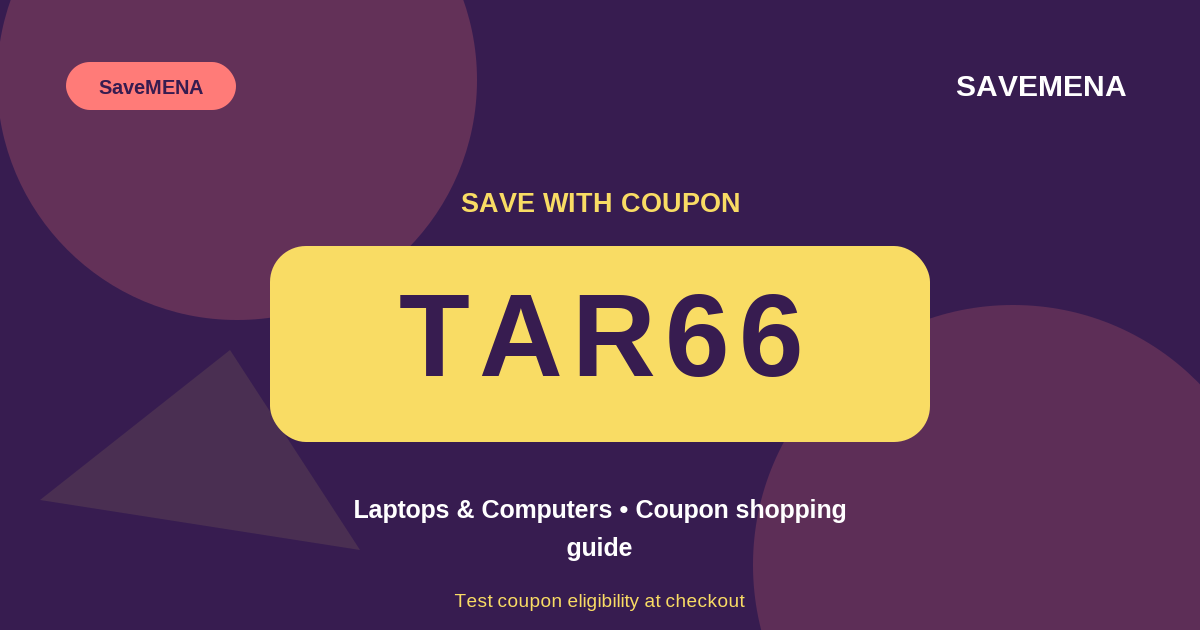
Codes available to try while comparing
These codes are not guaranteed for the article topic or listed brands; test them at checkout and use the live result.
1. Verify Listing Condition Tags
Start by locating the listing’s “Condition” attribute, often found near the title or in the product description section. This tag informs you if the laptop is Brand New, Like New, Refurbished, or Used. Comparing the label to your requirement—such as only accepting New or Refurbished models—helps eliminate unsuitable listings early in your search. Pay attention to any accompanying badge or icon that can reinforce the condition claim, but remember that such symbols are not infallible.
Because Noon UAE lists numerous sellers, each with its own condition terminology, cross‑check the displayed state against the item’s detailed photos. Images showing the laptop from multiple angles, including any visible dust, scratches, or logo placement, provide visual confirmation. If the photos reveal signs of wear inconsistent with a “New” claim, it signals the need to either find an alternate listing or contact the seller for clarification before proceeding.
2. Inspect Displayed Item State Details
Beyond the generic condition label, delve into the “Item State” section that highlights specific attributes: screen condition, keyboard performance, battery health, and component integrity. These granularity points can reveal subtle issues that a broad condition tag may overlook. Dataset fields like “Screen cracks” or “Battery cycle count” are sometimes offered; if available, use them as hidden risk indicators.
Confirm that the item state is consistent across all media—photos and optional videos. A laptop’s glossy finish or a keyboard’s key travel feel can be verified through close‑up images. If the visual evidence contradicts the textual description—such as a listed screen in perfect condition but an image showing a faint crack—pause and reach out to the seller for clarification before attempting a coupon application.
3. Check Seller’s Return Policy
Even if the listing condition appears satisfactory, examine the seller’s return policy for laptop purchases. A clear policy outlining return windows, eligibility, and restocking fees provides a safety net if the laptop fails to meet expectations post‑delivery. Many sellers list their return terms in a separate policy section, often linked from the product detail page.
Assess whether the return policy requires the laptop to be shipped in its original packaging and condition. Some sellers may ask you to provide photographic evidence of any defect before processing a return. Rule out sellers with ambiguous or restrictive return stipulations, as they may complicate post‑purchase resolutions, especially if the laptop’s displayed item state appears misleading.
4. Evaluate Product Warranty Visibility
Warranty coverage is another critical factor linked to the listing condition. Review whether the seller provides a manufacturer’s warranty, a third‑party guarantee, or an extended protection plan. Warranty details are usually listed in a dedicated section or within the seller’s policy description.
When the warranty is printed on the listing, verify its time span and coverage limits. A laptop with a stringent warranty may still carry hidden risks if the displayed item state shows potential defects. Hence, align the warranty scope with the condition assessment to ensure the combined offer meets your risk tolerance.
5. Confirm Stock Availability and Shipping Times
Before heading to the checkout stage, ensure the laptop is in stock. Search for the “In Stock” indicator, which appears next to the price or in a dedicated status field. Stock status prevents the common issue of applying a coupon to an item that later becomes unavailable.
Shipping times also matter; sometimes a listing shows “Fast Delivery” while in reality the item ship dates are uncertain. Verify the expected shipping window by looking at the delivery time estimate and checking whether it aligns with your required arrival date. These checks tie directly into the item’s displayed state as Stock‑aware listings often display fresh condition labels.
6. Evaluate Compatibility with Coupon Eligibility Rules
Even though the TAR66 coupon is a free-to‑try promotional code, applying it hinges on meeting the coupon's eligibility rules, many of which focus on price tiers, minimum spend, or product categories. Look for coupon eligibility badges on the laptop listing or the shopping cart summary where the coupon is enacted. While specifics aren’t disclosed publicly, note that a too‑high discounted price might not activate the coupon at all.
To maintain clarity, only attempt the coupon on laptops that have a verifiable listing price and displayed item state listing that appears stable. If the product page or cart shows a placeholder price or a vague discount field, the coupon may fail to apply, resulting in no benefit. Therefore, align the coupon test with a transparent, confirmed item state to ascertain its effect reliably.
7. Confirm Payment Method Requirements
The Noon UAE checkout process may require specific payment methods for coupon application—such as credit cards ending in certain numbers or registered wallets. Scan the payment options listed during checkout, noting any constraints that could block coupon redemption. Ensure your chosen payment method is supported and active in your profile.
Record any mandatory pre‑payment steps, like card authentication or two‑factor verification, that must be completed before the coupon is evaluated. If these steps are absent, the coupon may not be tested, making it appear ineffective. Having a verified payment method reduces friction during the coupon test and prevents extra delays at the final checkout step.
8. Final Checkout Verification
When you reach the shopping cart, bring together all previously verified elements: listing condition, displayed item state, return policy, warranty, stock status, coupon eligibility, and payment method. This step is crucial because final‑price calculations and applicable discounts are confirmed only at checkout.
Here, manually type the TAR66 coupon code in the designated field and observe whether the system accepts it. If the code fails, note the cause—perhaps the cart total is below a threshold or the listing does not support coupons. Should the coupon apply successfully, double‑check the updated total, as any misalignment with the displayed item state may indicate hidden fees or price adjustments. Final verification summarizes your entire purchase journey, ensuring that the coupon’s effect and the laptop’s true condition are aligned.
Related SaveMENA pages
Related articles
Official sources to check
Frequently asked questions
What should I do if the laptop’s listed condition doesn’t match its photos?
Contact the seller before applying the coupon. Inquire about any discrepancies between the “Condition” label and the visual evidence. Clarifying this ensures you don’t pay for a laptop that doesn’t match your stated expectations.
Can I use the TAR66 coupon on used laptops?
The coupon is available to try, but it may not apply to all listing conditions. Verify coupon eligibility on the cart page, as some sellers or product categories may be restricted regardless of the laptop’s used status.
Does a warranty guarantee cover visual defects found in the listing’s photos?
Warranty terms vary by seller. Typically, warranties cover manufacturing defects but not cosmetic issues presented in the listing photos. Review the policy details for coverage specifics before finalizing the purchase.
Is it safe to proceed with the coupon if the stock status says “Out of Stock”?
Proceeding when the laptop is out of stock can lead to cancellation or delayed delivery. Always ensure the item is currently in stock before checking out and applying the coupon, as the coupon may become void if the item is not available.