HP Computer Accessories on Noon UAE: offer combinations — seller checks
When you open a product listing, note who’s selling it. On Noon, the seller's name appears beneath the price and after the product title.
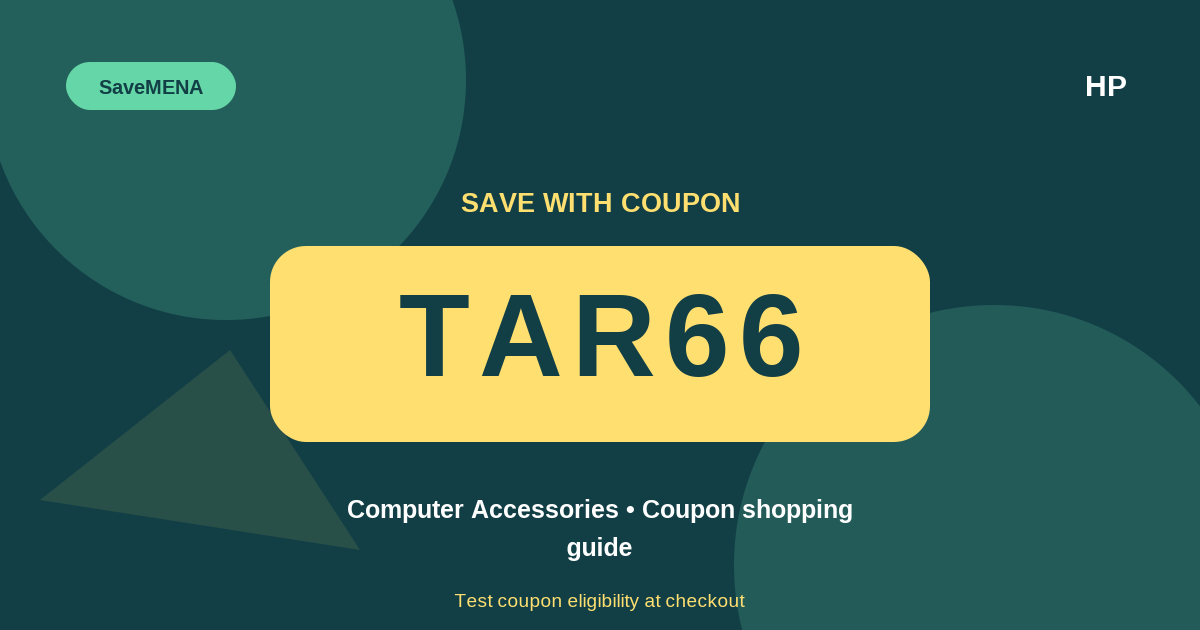
Codes available to try while comparing
These codes are not guaranteed for the article topic or listed brands; test them at checkout and use the live result.
1. Verify Seller Credibility & Role
When you open a product listing, note who’s selling it. On Noon, the seller's name appears beneath the price and after the product title. Hovering over the name usually shows minimal detail, but clicking the seller link brings a small profile page. This page displays the seller's account creation date, overall rating, and a brief description. For a “Noon UAE seller,” a longer tenure and stable rating suggest established operations, which is a positive signal that the seller will honor the store‑wide or cart‑level promotions available.
However, the seller profile alone does not guarantee that a flash deal or coupon will apply. Check the seller’s “Seller Status” badge if visible; often, Verified or Gold sellers have clearer return policies and higher customer satisfaction, which adds extra confidence before you add a digital accessory like a keyboard to your cart. Ignoring the profile can lead to mishaps where the coupon appears at checkout but the discount isn’t processed due to seller restrictions. Therefore, a quick seller check should be the first gate in your checklist.
2. Examine Visible Promotions on the Listing
Promotions that appear alongside the price are usually the most reliable source of discount for a Noon UAE seller. These include “Limited Time Deal,” “Deal of the Day,” or any highlighted price reduction. For computer accessories, these visible stickers or price breakdowns are often double‑checked with the seller’s own discount engine. They’re typically triggered automatically when a customer adds the item to the cart or hovers over the product image. By reading the textual cue, you instantly know whether the coupon will stack or only the visible promotion applies.
If you see a “Deal” button or a banner that overlays the product’s price, that usually indicates the seller is actively running a discount for that item. Since coupons are distinct from these seller‑driven promotions, you’ll need to manually apply "TAR66" during checkout to see if it offers any additional savings. A visible promotion that’s already in play may reduce the need for a coupon, but if your goal is to test “TAR66,” confirm that its rule set doesn't conflict with the existing promotion. This step prevents a false expectation based on what you see at the item page.
3. Confirm Coupon Applicability Before Adding to Cart
Coupons on Noon are applied user‑side, not seller‑side. Therefore, before you push “Add to Cart,” open the coupon panel or history tab in the app or web page. Type or paste “TAR66” and check whether the system acknowledges the code. If it highlights that the coupon “doesn’t apply to this product” or “becomes active at checkout,” the coupon is still worth testing at the final step. The acknowledgement often reflects compatibility rules such as minimum spend or specific category limitations.
Even if the coupon appears to be usable, the system may restrict it to only certain weight classes of items or to items from selected sellers. Hovering over the help icon next to the coupon field can reveal these restrictions, which is vital information. Without this pre‑cart assessment, you risk assuming that the coupon will reduce the price, only to find the final checkout denies any discount. Save time and frustration by confirming eligibility early in the flow.
4. Review Product Eligibility & Quantity Limits
Coupon “TAR66” may have quantity limits—this is determined by coupon rules set by Noon, not the seller. During the cart review, the system often indicates whether a coupon will apply to the selected quantity of a product. For example, some coupons only activate for single‑unit purchases or for a certain number of items. If you are buying multiple HP keyboards or a bundle of accessories, you’ll need to check that your selection still triggers the coupon.
Keep in mind that for computer accessories, certain models might be excluded from coupon eligibility due to vendor agreements or inventory constraints. The cart’s “Adjust Quantity” section sometimes contains a tooltip that explains if the product is coupon‑eligible. By confirming early that your exact model and quantity satisfy the conditions, you avoid ending the checkout process only to discover the coupon wasn’t applied because of quantity restrictions. This is particularly important when you’re intending to apply a coupon that may not stack with visible promotions.
5. Add to Cart & Review Cart Summary Carefully
Once the product passes the seller and coupon checks, add it to your cart. The cart page will recap the price, any active visible promotion, and notable fees. Review that the discount note listed under the product’s price corresponds to the visible promotion (ex: “the discount shown at checkout off for Noon store”). The shop’s coupon field will sit below the total but still before shipping and taxes. If the coupon is valid, you should see an “Apply Coupon” button; clicking it triggers a popup that confirms the coupon name and the new subtotal.
The cart summary also lists any mandatory fees, such as a storage or handling fee, which are common for computer peripherals. The presence of such fees explains why a discount might not directly reduce the displayed item price. Instead, the coupon may lower the overall total after all fees apply. If you’re unsure whether the total includes shipping, the cart usually separates “Delivery Fee” and “Total.” This granular view helps you see the true impact of the coupon and prevents you from misreading how much you’ll end up paying.
6. Check Shipping & Delivery Fees for Coupon Compatibility
Shipping fees on Noon sometimes negate the effect of a coupon, especially if the coupon rule is set to work only on the product subtotal. After reviewing the cart, look at the “Delivery Fee” field. For High‑Value GPU or large laptop stands, the fee can amount to a significant sum. Even if “TAR66” reduces the product cost, a high shipping fee may still bring the final amount closer to the original price. If the seller’s promotion includes free or discounted shipping, that could linger in the coupon logic. Verify whether the coupon description in the cart offers “Free Delivery” or simply a reduction on the product price. Understanding how shipping interacts with coupon rules is key; otherwise, you may think you saved when, in fact, the fee offset the discount.
In addition, some sellers specify a minimum cart value to qualify for shipping exemptions. If the cart value after applying coupons doesn’t meet that threshold, you’ll still see a delivery fee. Some coupons provide an automatic shipping reduction, but this is usually displayed as a separate field or as a percentage of the delivery fee. Double‑checking this helps ensure that the final charge reflects the intended coupon benefit, not a hidden fee.
7. Apply Coupon at Checkout & Verify Discount Allocation
Proceed to “Checkout” and select your delivery address. The screen will then display payment methods and a final discount box. Enter “TAR66” in the coupon input field. The system will compute the new subtotal only after confirming the coupon’s eligibility and applying it to the product and possibly to the shipping fee. If “TAR66” is successful, a line indicating “Coupon Applied” along with the discounted amount should appear). Check that the discount is applied exactly where you expect it—for example, that the product price is reduced from the visible promotion price, or that the shipping fee is lowered. If the discount doesn’t appear, the system should display a message explaining why, such as “Coupon not applicable to this product” or “Minimum spend requirement not met.”
If confusion remains on the amount recalculated, scroll to the “Order Summary” section; this area offers a detailed breakup of the discount, tax, and delivery fee. This level of detail ensures you’re not misreading a simple pixel placement on the screen. Double‑checking the final amount right before you press “Place Order” confirms whether the coupon is effective and whether you still benefit from the seller’s visible promotion. If the final total reflects neither discount, consider contacting Noon’s support for clarification, though the article advises that you verify all data before submitting.
8. Final Review of Order Total & Payment Confirmation
Just before confirming payment, give the order total a last pass. This includes verifying that the subtotal, shipping fee, applicable taxes, and coupon deductions are all finalized. Noon typically provides a before‑and‑after snapshot when you apply a coupon. Think of the final number as the real‑world price you’ll pay, which should account for all visible promotions and coupon deductions. If your ultimate payment method is a credit card or e‑wallet, ensure the card’s billing address is correct and the card holds enough balance for the entire total, including any surcharges that can appear in the payment gateway. Once you’re satisfied, confirm the order. The confirmation email is the definitive record that your coupon was applied; keep this handy for any post‑purchase support.
If subsequent emails show a different amount after the order, it usually signals an applicable tax adjustment that wasn’t displayed earlier. Should that happen, you can still track the calculation in the “Order History” in your Noon account. This archive can help confirm whether the coupon was actually used during final settlement. A clear, step‑by‑step record is vital for auditing purposes and for any future disputes with the seller or with Noon.
Related SaveMENA pages
Related articles
Official sources to check
Frequently asked questions
How can I confirm the seller is a bona fide Noon UAE seller before adding a product to my cart?
Check the seller’s name and rating on the product page, then click their profile link. Look for a visible “Verified” badge or an established creation date. A higher rating and longer tenure generally indicate reliability.
Can the coupon “TAR66” stack with any visible promotions on the product?
The coupon may or may not stack depending on the seller’s promotional rules. The system will usually indicate whether stacking is allowed, but you should test it at checkout to see if both discounts apply together.
Will shipping fees affect whether “TAR66” can be applied?
Yes, some coupons apply only to the cart subtotal and not to shipping. Check the cart’s discount line; if shipping is still full, the coupon might not factor into that fee.
What should I do if the coupon doesn’t appear to apply when I enter it at checkout?
Review the coupon’s eligibility note, compare the minimum spend or quantity limits, and ensure the product’s seller isn’t blocking the coupon. If still unclear, contact Noon support for clarification.